How ChannelScout works
ChannelScout turns accessible YouTube videos, channels, playlists, and supported public media URLs into a searchable, citable research library, using native captions where available and Whisper AI transcription within your plan allowance. Members-only, private, removed, and other restricted videos may not be accessible.
Large channels: start a job, then come back later
Channel and playlist extractions on Pro and Studio run in the background on our servers. Once your job is queued, you can close the tab, quit your browser, or turn off your computer. Sign back into the same account and open Library → Jobs to see its progress.
Successfully saved transcripts become available while the rest of the job continues. You can read, search, and use them immediately. Job details show anything that could not be saved, including allowance or storage limits. Existing saved transcripts are skipped when you scan the channel again.
Why a large job may take longer
We pace requests to protect reliable access to YouTube. A large channel may take hours, overnight, or longer; completion by the next day is not guaranteed. If YouTube limits requests, we save your progress and wait before trying again. The Jobs screen shows “Waiting for YouTube cooldown” and the earliest automatic retry time.
A cooldown can last minutes, several hours, or longer if access remains limited. Check the retry time shown on your job. Your saved transcripts remain usable, and starting another job does not skip the wait.
Stay in control of progress and budget
Use Pause to finish the current video and wait for you, Resume to continue from saved progress, or Stop to end the current run while keeping its progress. You can resume a stopped job later. If a server connection is interrupted, recovery is automatic; repeated interruptions may require Resume.
Background jobs default to YouTube captions only. Choose Whisper upfront or add it later for captionless videos, after captions have been collected. Review your remaining monthly Whisper transcriptions and minutes before opting in. Interrupted AI attempts may count toward your allowance and are not repeated automatically.
Free, Basic and Pro stop at their monthly captioned transcript allowance. Studio captioned transcripts are unlimited under fair use, and Studio jobs get priority parallel extraction. Large channels may take longer to finish. Library storage limits still apply. Job details show failed extractions and let you retry them. Private, removed, or restricted videos may be inaccessible or absent from YouTube’s channel listing.
In Library → Jobs, see newly saved transcripts, already saved transcripts, and a breakdown of videos without transcripts. Choose Show missing transcripts to filter by reason and see each video’s available title or video ID, YouTube link, recorded time, and reported reason. Members-only restrictions are separate from captionless videos and extraction errors. Whisper and retries cannot bypass access restrictions.
Get an email when a channel mentions your keyword.
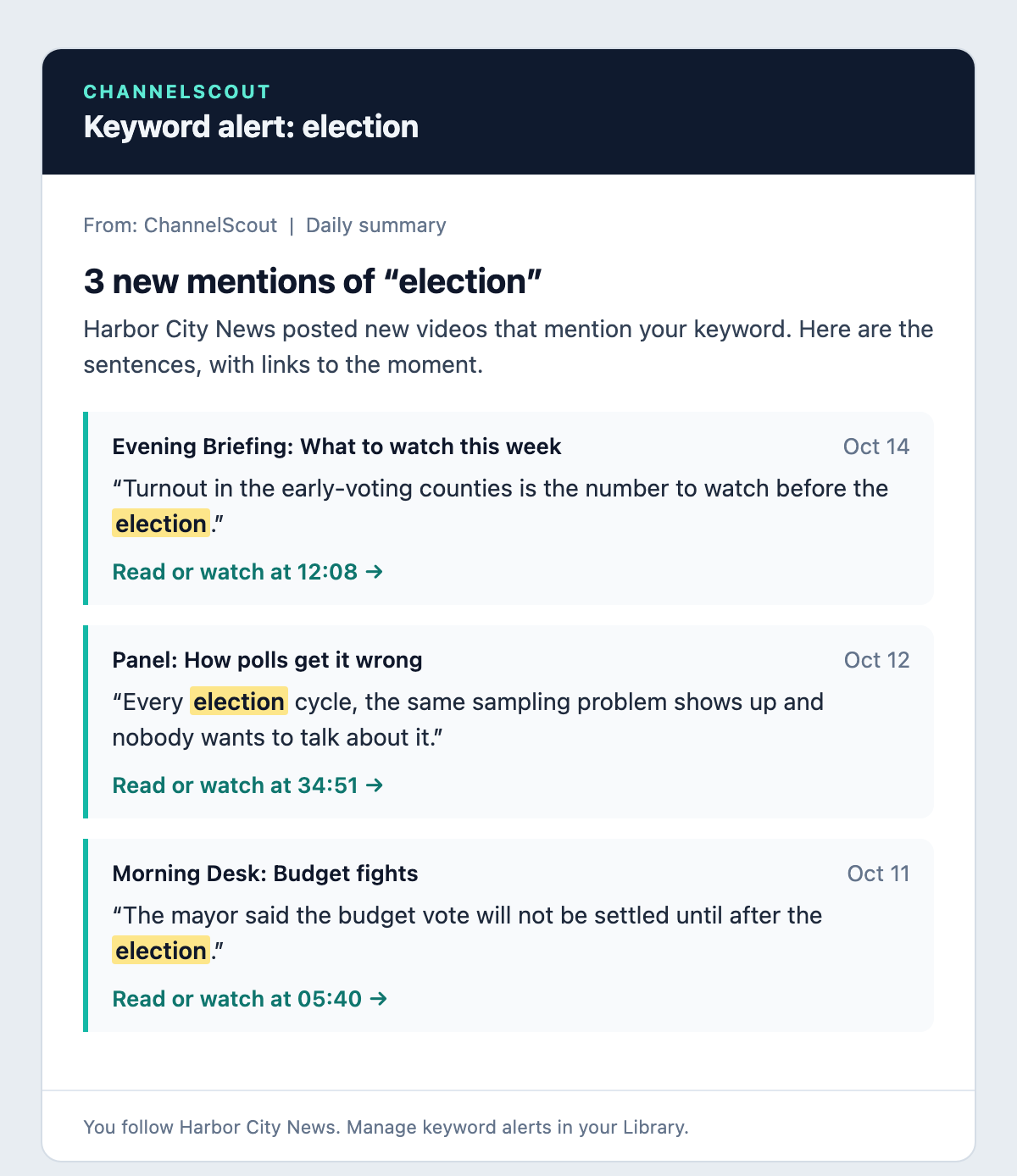
Illustrative example with fictional content.
Follow the channels you care about and add a keyword. When a new video says it, ChannelScout emails you the sentences around it. It is a researcher tool I built for my own work, now open to everyone.
The lowest-priced spoken-keyword alerts for YouTube channels: free to start, and from $9/month. Get an email with the exact sentences and a link to the moment when your keyword is spoken in a new video.
- ✓The email quotes the matching sentences with your keyword highlighted.
- ✓Each match links to read or watch that exact moment.
- ✓Free includes 1 keyword alert with a daily summary email. Pro and Studio can also choose instant emails.
Bring a transcript you already have
Members-only videos require a paid channel membership at an eligible level. Age-restricted videos require a signed-in YouTube account with any required age verification. Your YouTube access does not carry over to ChannelScout's servers. Whisper can transcribe accessible audio, but it cannot remove these restrictions.
If you have a transcript you are authorized to use, open Library → Import transcript. Upload a UTF-8 SRT, VTT, or TXT file up to 1 MB, or paste the text. Add a title and an optional YouTube video link, preview it, confirm your permission to use it, and save it.
Imports stay private to your account. You can read, search, rename, download, and delete them from your Library. SRT and VTT timestamps are preserved; plain text is labeled as having no timestamps. Each new import counts toward your monthly transcript allowance and uses no Whisper jobs or minutes. Existing saved transcripts are not overwritten.
A saved import does not unlock its source video or make it available to the Clip Builder. Job results describe that extraction run; transcripts imported later appear in your Library without changing the historical job counts.
Two ways to get a transcript
Use existing captions when they are available, or use your Whisper allowance to transcribe accessible audio when captions are missing.
When a video has accessible YouTube captions, ChannelScout can turn them into a readable transcript with timestamps. This does not use your Whisper allowance.
If captions are missing, Whisper can transcribe accessible audio within your plan allowance. Channel and playlist background jobs only use Whisper when you opt in. Longer recordings take more time.
Review your remaining Whisper transcriptions and minutes before starting. AI transcription cannot unlock private, members-only, or other restricted videos.
Your step-by-step guide
Choose a video, channel, or file
Drop in a YouTube video (youtube.com/watch?v=…), channel, or playlist. You can also try a public media link, such as SoundCloud or a direct audio/video file. Availability varies by source; links that require a separate login may not be accessible.
When a channel or playlist preview is available, choose videos from its checklist to extract them in bulk. Previews may be limited by your plan; the page explains the available options if a preview cannot be loaded.
To transcribe your own recording, sign in, choose Upload File, and select a supported audio or video file up to 500 MB. Keep the browser open until uploading finishes. After that, transcription continues with the browser closed. Interrupted uploads can resume within 24 hours of starting the upload when you select the same file in Upload jobs. File duration, temporary storage, and plan allowances also limit what you can process. If a job is waiting for allowance, resume it once enough is available.
Follow your transcription progress
The YouTube tab checks for accessible captions first. When they are available, reading and searching the transcript does not use Whisper minutes. If they are missing, a single-video extraction may automatically use Whisper within your allowance.
The Any URL tab and file uploads use audio transcription, so starting them may use Whisper allowance without a separate captions-only choice. Keep the page open for single-video and Any URL requests until they finish. Background channel jobs and fully uploaded file jobs can continue with the browser closed; manage them in Library → Jobs.
Transcript saved to your library
Sign in to keep successfully saved transcripts in your account and access them across devices. Anonymous results are not synced to an account; download anything you want to keep. Background jobs save completed results as they go; check your Library to confirm a transcript was saved.
Uploaded originals are scheduled for deletion 24 hours after successful transcription, or after seven days if you choose to keep them for clipping. Active processing is protected. Deleting an original does not delete its saved transcript or completed clips. Completed clips have their own plan-based retention rules; download them before any expiration shown in your Library.
Research with the transcript
Search for keywords within a transcript and across your saved Library. Where video playback and timestamps are available, use them to jump to the relevant moment. Extraction result pages offer AI summaries within your allowance and download formats including HTML, Markdown, CSV, SRT, and text. Saved import and upload pages provide text downloads; the available tools depend on the view.
When signed in, a completed individual transcript summary is automatically saved with that transcript in your Library. Look for “Saved to Library” to confirm it. Reopen the transcript to read the saved summary without using another AI request. The summary is separate from the original transcript. Regeneration uses your AI allowance; incomplete or failed generations do not replace the last saved summary. Channel overviews are separate: copy or download them to keep them.
Standard is the default AI summary mode. Basic, Pro, and Studio also include Think more, which takes longer and may help with complex material. Both modes use the same AI allowance. Choosing a mode does not start a new generation: select Summarize with AI when ready. Completed individual summaries are saved separately for each mode, so you can switch back to a saved version without generating it again. Always check important claims against the transcript.
Build clips (optional)
Open an accessible video in the Clip Builder and set a start (A) and end (B) point. Use the timeline or available transcript timestamps to find the moment you want. Choose a quality, confirm the usage acknowledgment, and select "Request Video Download" or "Request Audio Download". Return to your Library to download the completed clip. Quality, duration, clip count, storage, and retention limits depend on your plan.
Create a clip in three steps
The Clip Builder is a separate flow from transcript extraction. You can use it without ever visiting the Analyze page.
Load a video
Paste a supported YouTube URL, or open a retained video upload in the Clip Builder. Read the available transcript alongside the video to find your moment.
Set your A/B points
Drag the start and end markers on the timeline, or click a transcript line to jump to that moment. Fine-tune with the ±1s/±10s nudge buttons. Loop A→B to preview your exact cut.
Download the clip
Choose a quality and confirm the usage acknowledgment, then select "Request Video Download" or "Request Audio Download". Download the completed clip from your Library before any expiration shown there. Review it before sharing; the final cut can differ slightly from your selected times.
Why this approach matters
AI transcription when captions are missing
Whisper can transcribe accessible audio when YouTube captions are missing, subject to your plan allowance. It cannot bypass memberships, private videos, or other access restrictions. Channel and playlist background jobs use it only when you opt in.
Not just YouTube
Try a supported public media link or upload an audio/video file. Availability varies by source, and some sites or videos may be inaccessible.
Multi-language support
Transcripts start in the video's original spoken language. Use Change next to the language to view another caption track the video offers (creator-uploaded or YouTube automatic captions); your Library copy changes only if you choose Save this version. Channel jobs and followed channels use each video's original language. Whisper transcribes from audio; language support and accuracy can vary.
A library, not a one-shot tool
Sign in to keep successfully saved transcripts together and return to them later. Your Library has a storage allowance, and you control which saved transcripts to delete.
Full-text search across channels
Index an entire channel, then search "minimum wage" or "climate ratchet" across every transcript at once. Search returns matches from the transcripts saved in your Library.
Keep useful moments ready to share
Turn a useful passage into a downloadable clip for your research or commentary. Review the finished clip and make sure you have permission or an appropriate basis to use it.
Your workflow at a glance
Start
A video, channel, playlist, or supported file
Captions
Use available captions without Whisper minutes
Whisper
Transcribe audio within your allowance
Progress
Follow background jobs in your Library
Library
Keep and revisit saved transcripts
Search
Find keywords across your saved transcripts
AI assistance
Summarize and explore your transcripts
Export
Download transcripts in useful formats
Clips
Save and download selected video moments
Use ChannelScout as an app
Open the navigation menu, then choose App options for installation instructions, Refresh app, Open in browser, and Copy link. On the public website, App options is also in the footer.
On iPhone or iPad, open ChannelScout in Safari and choose Share → Add to Home Screen. On Android, use Chrome’s Install app or Add to Home screen option. Installation is optional; you can keep using the website.
Refresh loads the latest page without clearing saved account data. Finish file uploads and save your edits first. If Open in browser stays inside the app on your phone, copy the link and paste it into your browser. You may need to sign in separately there.
You still need an internet connection for transcripts, searches, and downloads. Submitted background jobs can continue after you close the app. Keep it open until a file finishes uploading and its job is queued. Installing the app does not make unfinished uploads or single-video requests run in the background.
Ready to try it?
Free to use. No account required to extract your first transcript.